Bundle your HTML inside the app if the content is mostly fixed, has to work offline or must open instantly. Load a live URL if the content changes every day, depends on server logins or checkout, or is a large site you already run. In our tests on a budget Android phone, a bundled HTML5 game loaded in 0.07 seconds on any connection. The same game as a live URL took 0.51 seconds on Wi-Fi and 1.9 seconds on a slow connection, and with the network cut it showed an error page instead of the game.
Both are ordinary Android apps with the same icon, package name and Play listing. The difference is only where the WebView gets your pages from. This guide shows what that difference does in practice. If you haven't converted anything yet, the complete HTML to APK guide covers the whole process.
What the two options actually are
- Bundled HTML. Your files (HTML, CSS, JavaScript, images) are packed into the APK. Apps built here serve them from a private web address inside the app,
https://appassets.androidplatform.net, so the WebView treats them like a real website, just one that lives on the phone. Some other converters load bundled files fromfile://instead, which changes the rules (more on that below). - Live URL. The app opens your website, for example
https://example.com, every time it starts. The app holds no content of its own. It's a dedicated browser window for your site.
How we tested
We built four apps with the same Android runtime this site uses and installed them on a Samsung Galaxy A05 (Android 15, WebView 157):
- A recipe page (7.6 KB) bundled, and the same page loaded live from htmltoapk.com over the real internet.
- An HTML5 game (64 KB of HTML, CSS and JavaScript) bundled, and the same files loaded as a live URL from a computer on the same Wi-Fi network. That's a best case for the live version, because there's no internet distance at all.
We timed every reload from inside the app's WebView with Chrome DevTools and took the median of three to five runs. We repeated the tests on an emulated slow connection (400 ms latency, 400 kbps) and with the network cut. The screenshots are real captures from the phone.
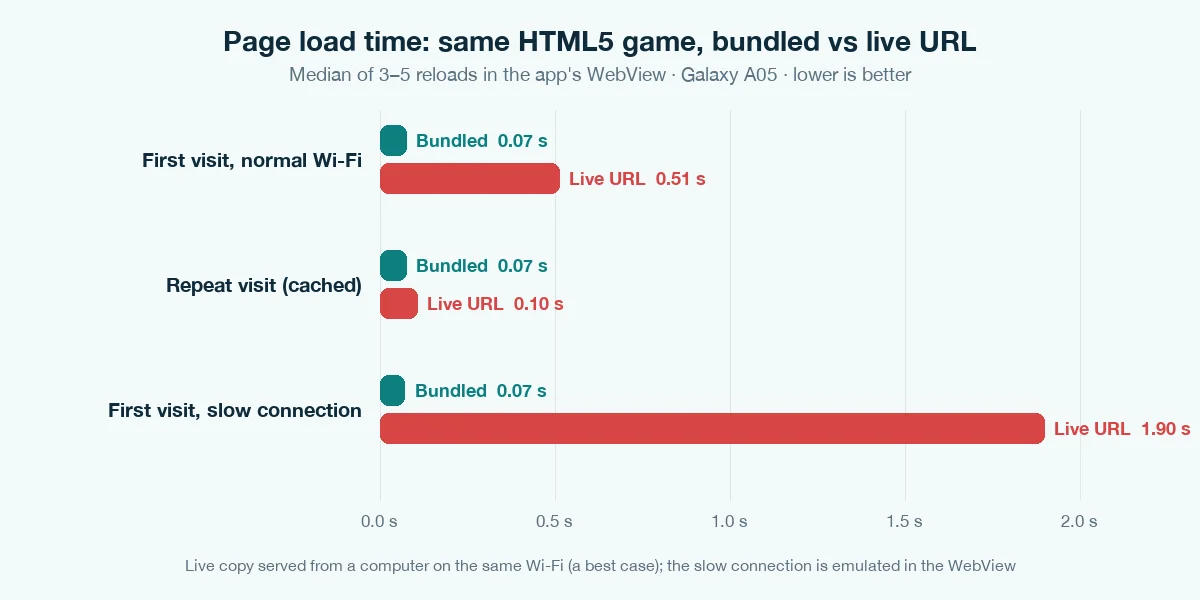
| Test (Galaxy A05) | Bundled | Live URL |
|---|---|---|
| Game, first visit, Wi-Fi | 0.07 s | 0.51 s |
| Game, repeat visit (cached) | 0.07 s | 0.10 s |
| Game, first visit, slow connection | 0.07 s | 1.90 s |
| Recipe page, first visit, real internet | 0.08 s | 0.19 s |
| Recipe page, slow connection | 0.10 s | 0.52 s |
| Network cut | Works normally | Error page |
| Data downloaded per first visit (game) | 0 bytes | 48.7 KB |
| Added to the APK (game) | 21 KB | 0 KB |
One thing the numbers don't change: app start-up. In our splash screen tests, the time from tapping the icon to seeing the page was almost identical either way on fast Wi-Fi (1.40 s bundled, 1.45 s live). Starting the app and the WebView takes far longer than loading a small page. The gap opens up on slow networks and on heavier pages.
Speed: bundled doesn't care about the network
A bundled page reads its files from the phone's storage, so the connection plays no part. Our game loaded in about 0.07 seconds on Wi-Fi, when cached and on the slow connection. The live copy needed 0.51 seconds on a first visit, even from a computer on the same Wi-Fi. On the slow connection it needed 1.9 seconds, and 1.5 seconds in, the menu still hadn't appeared.
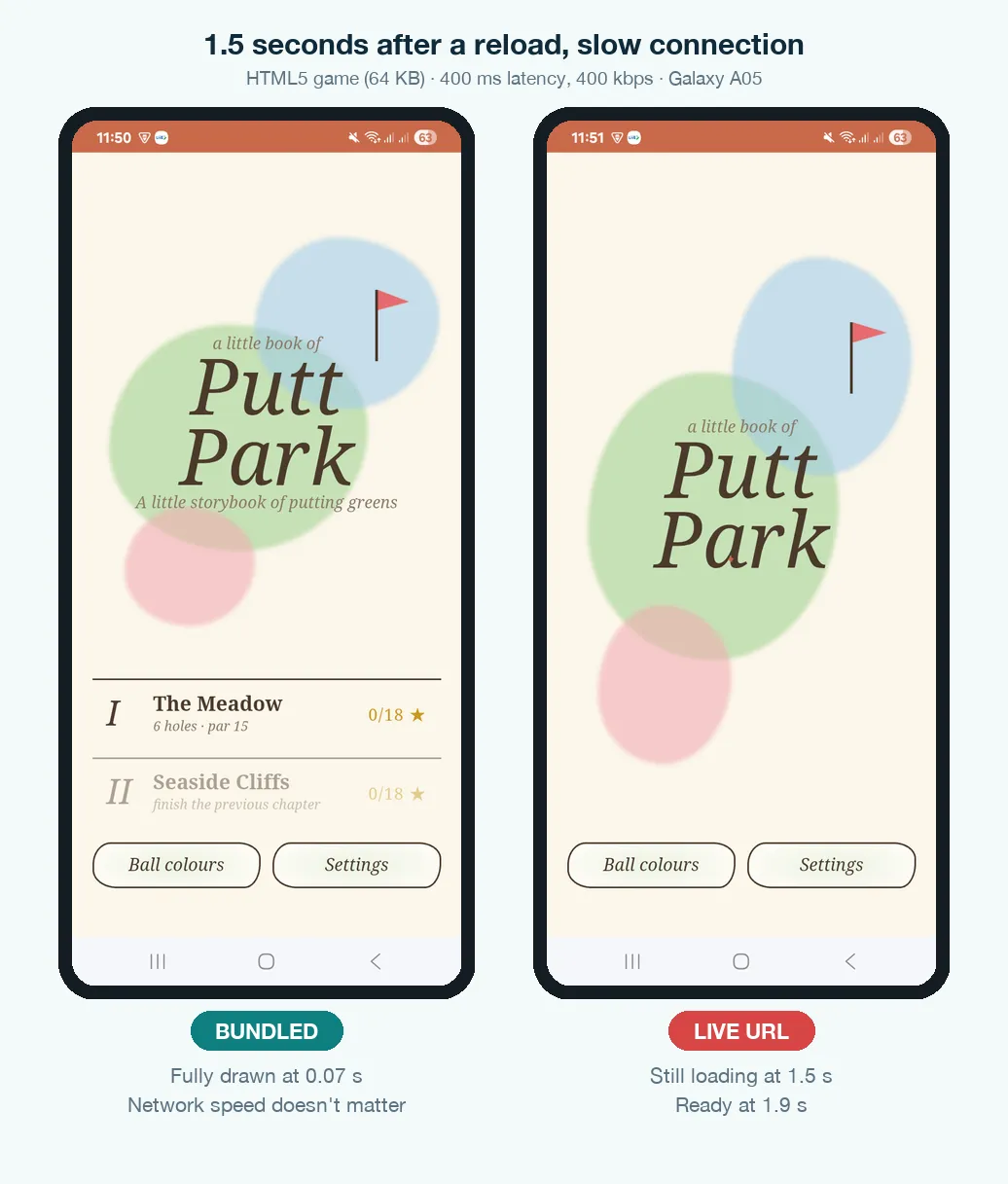
Caching helps the live URL a lot on repeat visits (0.10 s in our test), but only for files the browser has already stored. A first launch on a train, or the first visit after you update the site, is always the slow case.
Offline: the clearest difference
With the network cut, the bundled app opened exactly as normal. The live-URL app had nothing to show, so the WebView displayed its built-in "Web page not available" error. Many converters swap that error for a friendlier "no connection" screen, and apps built here show one when the phone is really offline. Either way, your content isn't there.
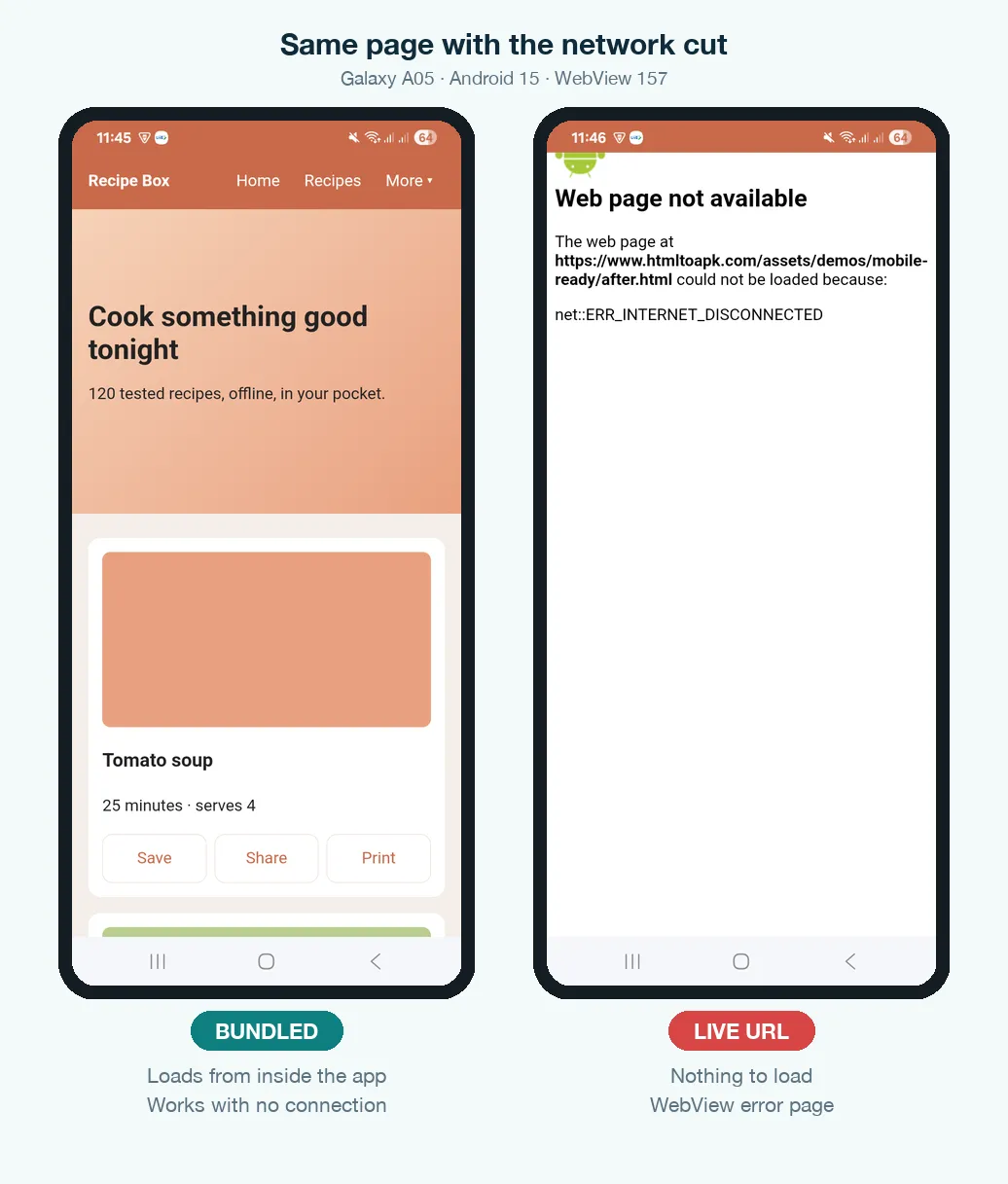
If you need a live URL and some offline use, it takes work on the website side: a service worker that caches pages, or a dedicated offline page. That's worth doing, but it's never as complete as having the files inside the app.
Updates: live wins by a mile
Change a live website and every app user sees it the next time a page loads. No new build, no store review. A bundled app only changes when you publish a new version: rebuild with the new files, raise the version code, upload, wait for review, then wait for users to update. If your content changes daily (prices, news, stock), that cycle is a real cost. If it changes a few times a year, it hardly matters.
Size: smaller than you'd think
Bundling adds your files to the APK, but text compresses well. Our 64 KB game added just 21 KB to the app. Images and video are what make bundled apps big, because they're already compressed. Measure before you decide that bundling is too heavy.
The catch most people hit: APIs and CORS
A bundled page can still use the internet. It can fetch data, send forms and call your API. But it runs under its own address (https://appassets.androidplatform.net in apps built here), so to your server every request is cross-origin. We tested it from inside the bundled app:
| Request from the page | Bundled page | Live page on the same site |
|---|---|---|
| A server that sends no CORS headers | Blocked ("Failed to fetch") | Works (same origin) |
A server that sends Access-Control-Allow-Origin | Works | Works |
So if a bundled app talks to your own backend, the backend has to allow the app's origin:
Access-Control-Allow-Origin: https://appassets.androidplatform.net
Access-Control-Allow-Methods: GET, POST, OPTIONS
Access-Control-Allow-Headers: Content-Type, Authorization
Check which origin your converter uses: run location.origin in the app's page through Chrome remote debugging. Cookie-based logins are harder still. A session cookie from example.com is third-party to a bundled page, so log in with a token you send in a header instead. A live URL avoids all of this, because the page and the server share the same origin.
JavaScript modules: depends on how the files are served
<script type="module"> is blocked on file:// pages, which is why many guides tell you to avoid it in bundled apps. That rule depends on the converter. Apps built here serve bundled files over the https:// asset address, and in our test a page importing one module from another worked normally. If your converter uses file://, bundle your scripts into one file. Our project structure guide shows how.
Which should you choose?
| Your project | Choose | Why |
|---|---|---|
| HTML5 game, calculator, quiz, catalogue, manual | Bundled | Instant, offline, nothing to host |
| Event guide, menu, brochure that changes a few times a year | Bundled | Offline matters more than instant updates |
| Shop with checkout, booking site, members area | Live URL | Logins, payments and stock live on the server |
| News, blog, prices or stock that change daily | Live URL | Updates without a new release |
| Big existing website (WordPress, Shopify, Wix) | Live URL | Too big and too dynamic to bundle |
| App screens in HTML, data from your own API | Bundled + API | Fast, works offline, fresh data. Needs CORS on the API |
Common mistakes
- Bundling a site that needs a server. PHP pages, logins, carts and search won't work from inside an APK. Those need a live URL or an API.
- Choosing a live URL and ignoring offline. Users open apps in lifts and on trains. At minimum, make sure the app shows a clear offline screen instead of a browser error.
- Forgetting CORS for the bundled origin. Everything works in your desktop browser, then every API call fails inside the app.
- Absolute paths in bundled files.
/css/style.csspoints somewhere else once the files are packed. Use relative paths, as covered in the website ZIP guide. - Assuming bundled means big. Measure first. Code and text barely add anything.
What to do next
If you're bundling, get the layout right for a phone first with the mobile-ready guide, then zip your site and follow the ZIP to APK guide. If you're loading a live URL, read WebView vs native to understand what the wrapper can and can't add on top of your site.