An HTML app needs exactly one splash screen, in your brand colour, shown until the first page has loaded and not a moment longer. Since Android 12, every app already gets a splash screen from the system. If your app adds a second splash on a timer, people see two different screens, then often a blank white page, before your content appears. We measured both setups on a budget Android phone. With two splashes, it took 3.3 seconds from tap to first page. With one splash held until the page loaded, it took 1.4 seconds, and the grey screen and white flash were gone.
This guide is about timing and behaviour, the part a design tool can't show you. For icon sizes and the 432dp safe zone, use the splash screen generator.
What happens when someone taps your HTML app
An app that shows HTML can't show your page straight away. Android has to start the app's process, create the WebView (a whole browser engine), and then load and draw your first page. A splash screen exists to cover that gap. Here's what fills the gap, in order:
- The system splash. On Android 12 and newer, the system draws it for every app before any of your code runs. It's a background colour with your icon in the middle. If the app's theme doesn't set a splash colour, Android uses the theme's ordinary window background instead.
- Your own splash screen, if the app has one. Many WebView templates still include a separate splash screen from the Android 11 era, often on a fixed timer.
- The WebView before its first paint. Until your page draws, the WebView is a blank white rectangle.
- Your page.
Every step you see here is time the user spends waiting. The goal is to make steps 1 to 3 look like one calm screen, and to end it the moment step 4 is ready.
How we tested
We used the recipe page from our mobile-ready guide and built it into four Android apps, all identical apart from how they start:
- Two splashes: the system splash, then a separate splash screen in brand colour shown for a fixed 1.8 seconds. This is the classic WebView-template setup. We built one version with the page bundled inside the app and one loading it as a live URL.
- One splash: the system splash coloured with the brand colour and held on screen until the WebView reports the page has finished loading, with a 5-second safety limit. Again, one bundled and one live version.
We installed each app on a Samsung Galaxy A05 (Android 15, WebView 157) and recorded four cold starts with adb shell screenrecord, closing the app completely before each one. Then we classified every frame of the recordings, 60 per second, as system splash, brand splash, transition, blank WebView or page. All times below are measured from the tap.
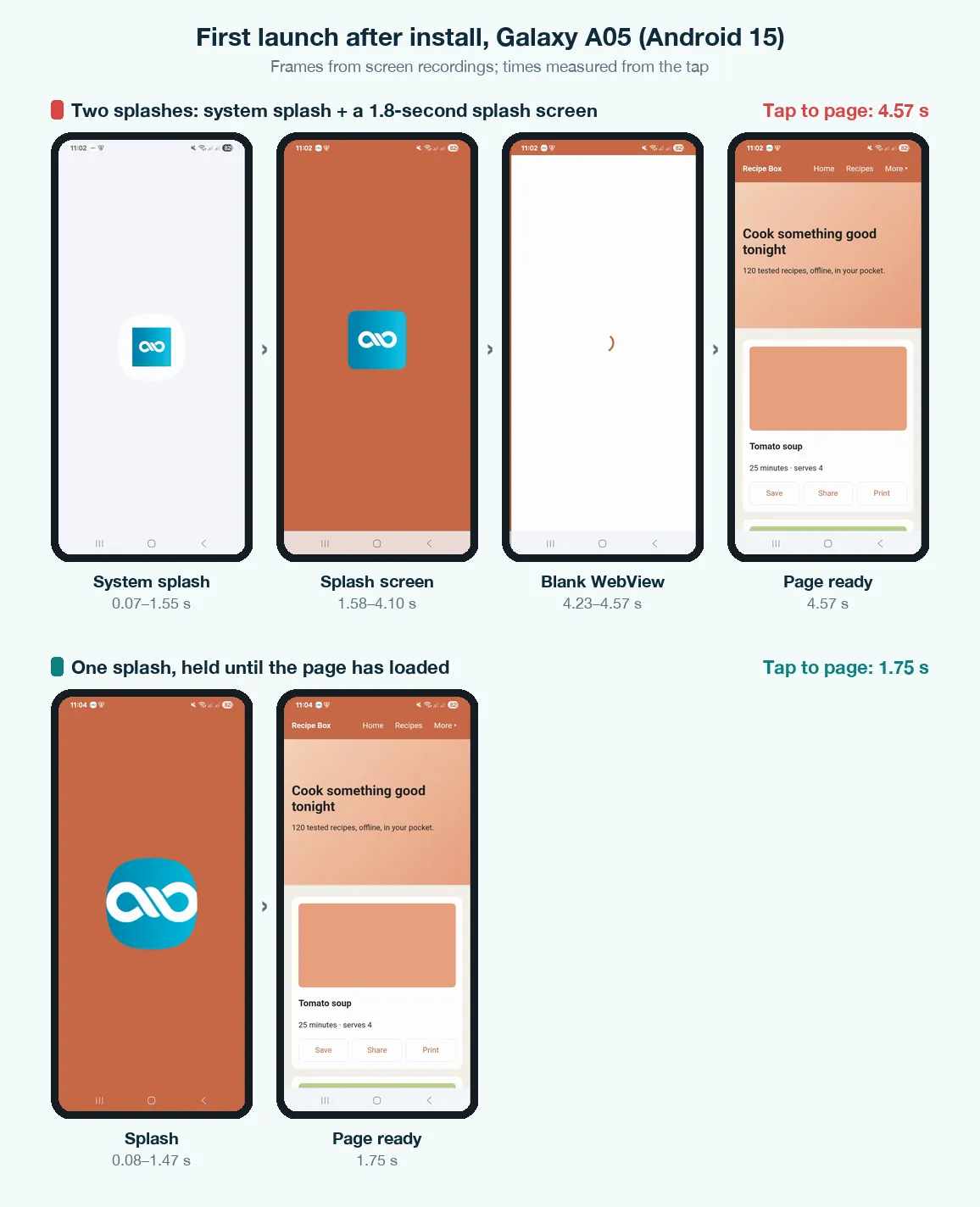
| Setup (Galaxy A05) | First launch after install | Later launches (median) | What the user sees |
|---|---|---|---|
| Two splashes, page bundled | 4.57 s | 3.27 s | Grey screen → brand screen → (white on first launch) → page |
| Two splashes, live URL | 3.82 s | 3.22 s | Same |
| One splash, page bundled | 1.75 s | 1.40 s | Brand screen → page |
| One splash, live URL | 2.15 s | 1.45 s | Brand screen → page |
What the numbers say
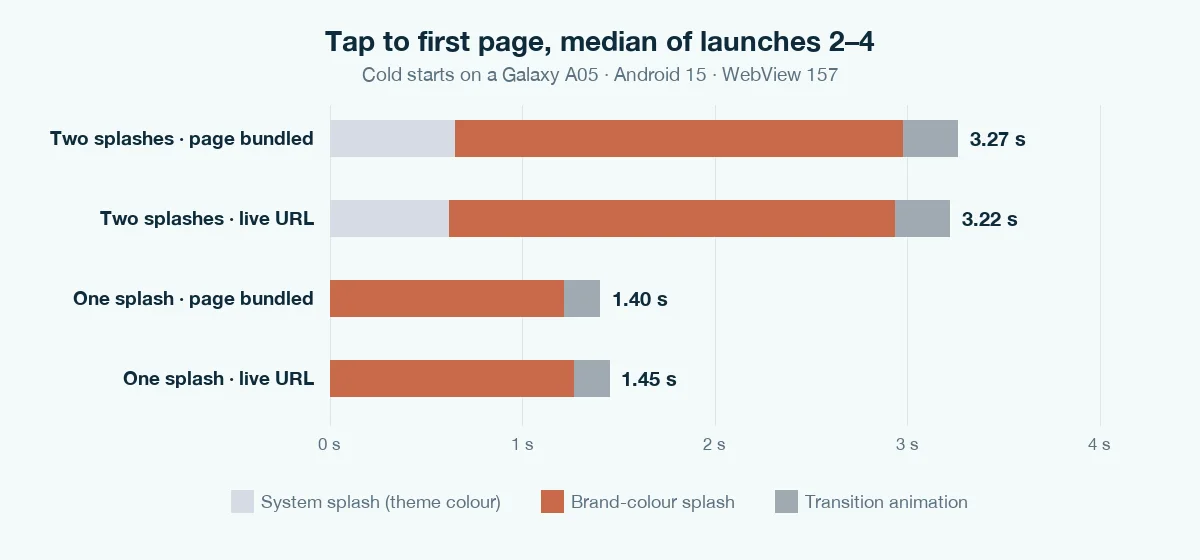
- The fixed timer costs the most. The 1.8-second timer kept the brand splash on screen for a median 2.3 seconds, because the next screen also has to start before it can go. Meanwhile the page itself was ready far sooner: the one-splash apps showed it at 1.4 seconds.
- Two splashes means two colours. The first splash used the theme's light grey background with the icon in a white circle. It lasted 0.6 to 0.8 seconds on later launches and 1.5 seconds on the first, then jumped to the brand colour. That's a visible flicker even when everything works.
- The white flash only appears on the first launch. On the first launch after install, both two-splash apps showed a blank white WebView for 0.33 to 0.38 seconds. On later launches the page was already drawn by the time the main screen slid in. The one-splash apps never showed it, because the splash stays up until the page has finished.
- Bundled versus live made almost no difference here. Our test page is small and the phone was on fast Wi-Fi. A heavier page or a slow mobile connection widens the gap, and with a held splash, that wait happens behind your brand colour instead of on a white screen.
How to build one splash held until the page loads
If you build the Android side yourself, whether in Android Studio or by editing a template, this is the setup we tested, as it ran on the phone. It uses Jetpack's SplashScreen library, which also gives older Android versions the same behaviour.
1. Add the library
// app/build.gradle.kts
dependencies {
    implementation("androidx.core:core-splashscreen:1.0.1")
}
2. Give the splash your brand colour and icon
<!-- res/values/themes.xml -->
<style name="Theme.App.Starting" parent="Theme.SplashScreen">
    <item name="windowSplashScreenBackground">#C96A4A</item>
    <item name="windowSplashScreenAnimatedIcon">@drawable/app_icon</item>
    <item name="postSplashScreenTheme">@style/Theme.App</item>
</style>
Use the same colour as the top of your first page. Our page header is that terracotta, so the moment the splash lifts, the header is already in place and the change barely registers. The icon is masked to a circle, which is why the tool above places your artwork inside the safe zone.
3. Make the WebView screen the launcher
Delete the separate splash activity and launch straight into the screen that holds the WebView, using the starting theme:
<activity
    android:name=".MainActivity"
    android:exported="true"
    android:theme="@style/Theme.App.Starting">
    <intent-filter>
        <action android:name="android.intent.action.MAIN" />
        <category android:name="android.intent.category.LAUNCHER" />
    </intent-filter>
</activity>
4. Hold the splash until the page has loaded, with a time limit
import androidx.core.splashscreen.SplashScreen.Companion.installSplashScreen

class MainActivity : AppCompatActivity() {
    @Volatile private var pageShown = false

    override fun onCreate(savedInstanceState: Bundle?) {
        val start = SystemClock.uptimeMillis()
        installSplashScreen().setKeepOnScreenCondition {
            // Keep the splash until the page is ready, but never more than 5 s.
            !pageShown && SystemClock.uptimeMillis() - start < 5000
        }
        super.onCreate(savedInstanceState)
        // … set up the WebView as usual, then:
        webView.webViewClient = object : WebViewClient() {
            override fun onPageFinished(view: WebView, url: String) {
                pageShown = true
            }
        }
    }
}
Two details matter. installSplashScreen() has to run before super.onCreate(). And the 5-second limit is essential: on a dead connection, onPageFinished may come late or show an error page, and nobody should be stuck looking at a logo. After 5 seconds the splash lifts, and your page loader or offline screen takes over.
If you use a converter and can't change the native code
You still control more than you think, and you can measure the result yourself.
- Set the splash colour to your first page's top colour, not just "a brand colour". A matching colour turns the hand-over into a non-event.
- Choose the shortest splash duration the converter offers. A fixed timer only adds waiting. It can't make the page load faster.
- Prefer a splash that ends when the page has loaded over one that ends after a set time, if your converter lets you pick.
- Keep the first page light. A held splash lasts as long as the first page takes to load, so big images and web fonts on the opening screen lengthen it. Our mobile-ready guide covers the layout side.
- Use a clean, square icon. Android masks the splash icon to a circle, the same family of masks as adaptive launcher icons. Check yours with the adaptive icon previewer below.
Measure your own app's launch
With your phone connected over USB debugging, these commands reproduce our test. Replace the package name with your app's.
# close the app completely, then record 8 seconds of screen
adb shell am force-stop com.example.app
adb shell screenrecord --time-limit 8 /sdcard/launch.mp4 &

# launch it (in a second terminal, or after a short pause)
adb shell monkey -p com.example.app -c android.intent.category.LAUNCHER 1

# copy the video to your computer and step through it frame by frame
adb pull /sdcard/launch.mp4
Count the distinct screens before your page appears. One is the goal. Two different colours, or a white frame, means there's time to win back.
Common mistakes
- A splash on a timer "so people see the logo". In our test, the 1.8-second timer was the single biggest part of the launch time.
- Leaving the system splash uncoloured. Without
windowSplashScreenBackground, Android 12+ uses the theme background. In our test that was a light grey screen before the brand colour. - Building the splash in HTML. A loading screen inside your page can only appear once the WebView has started and drawn it, which is after the native splash has already gone. Use it as a page loader if you like, but it isn't a splash screen.
- Holding the splash with no time limit. One slow request and the app looks frozen.
- Testing only by re-opening the app. An app that's still in memory skips most of this. Close it completely (
force-stop) and test the first launch after a fresh install too. That's where the white flash showed up.
What to do next
Get the icon right first. It appears on the launcher, the splash and the Play listing, and the Android app icon guide covers every size. Then follow the complete HTML to APK guide to build and install the app.