A single HTML file converts trivially — everything is in one place, nothing can point at the wrong thing. A ZIP of a real site is where conversions go wrong, because now there are paths, folders, an entry page to identify, and a filesystem that behaves differently from your web server.
What the ZIP should contain
An index.html at the top level, with its assets alongside it:
site.zip
├── index.html          ← the entry page, at the root
├── about.html
├── css/
│   └── style.css
├── js/
│   └── app.js
├── img/
│   └── logo.png
└── fonts/
    └── inter.woff2
The classic mistake is zipping the folder rather than its contents, so everything ends up one level deeper under mysite/. Good converters detect and flatten a single wrapper folder, but relying on that is optimistic — select the files inside your folder and compress those.
On macOS, compressing a selection also produces a __MACOSX/ directory of metadata. It is harmless and normally stripped, but it is not part of your site.
The entry page
The app has to know which page to open first. index.html at the root is the convention and the safest choice. If yours is called something else — home.html, main.html — either rename it or make sure the entry page is set explicitly during conversion.
If there is no index.html anywhere, the app has nothing to load and opens blank.
Paths: the rule that decides everything
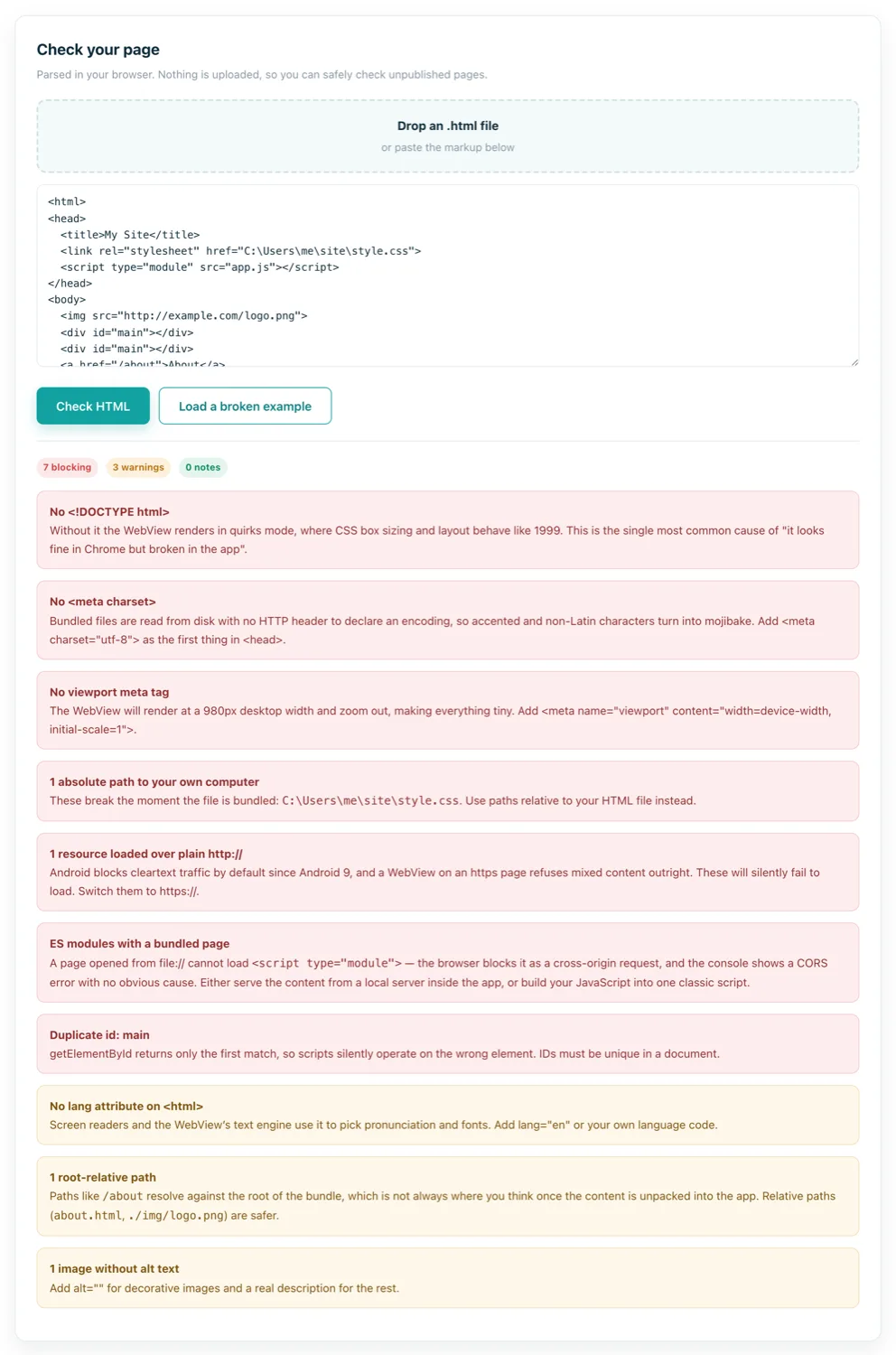
Your web server resolves /css/style.css against the site root. Inside an app, there is no server and no site root — pages are loaded from a directory on the device. Root-relative paths therefore resolve somewhere unhelpful, and absolute paths to your own machine resolve nowhere at all.
| Path | In the app |
|---|---|
css/style.css | Works — relative to the page |
./img/logo.png | Works |
../shared/app.js | Works, if the folder is inside the ZIP |
/css/style.css | Fragile — depends where the bundle is mounted |
C:\Users\me\site\style.css | Never works |
https://cdn.example.com/lib.js | Works online, blank offline |
Case sensitivity will catch you
Windows and macOS filesystems are usually case-insensitive; Android's is not. <img src="Logo.PNG"> pointing at a file named logo.png works perfectly on your laptop and silently fails on the phone. It is one of the most common "it worked before I built it" bugs, and it only appears on the device.
The fix is a habit rather than a tool: lowercase every filename, and never rely on your OS to paper over a mismatch.
The file:// restrictions
Bundled pages load from file://, which browsers treat as a restrictive origin. Three things stop working, and none of them announce themselves clearly:
- ES modules.
<script type="module">is fetched under CORS rules that a file:// origin cannot satisfy. Your JavaScript never runs and the console blames CORS. - fetch() on local files. Loading
data.jsonfrom disk fails the same way. Remote https:// APIs are fine. - Service workers. They require a secure origin and never register — harmless, since the app is already offline, but any logic you put in one does nothing.
Two ways around it: build your modules into a single classic script, or serve the bundled files from a small local HTTP server inside the app so the origin becomes http://localhost. The second is what a good converter does for you, and it is why bundled sites with modern build output work at all.
Trim before you zip
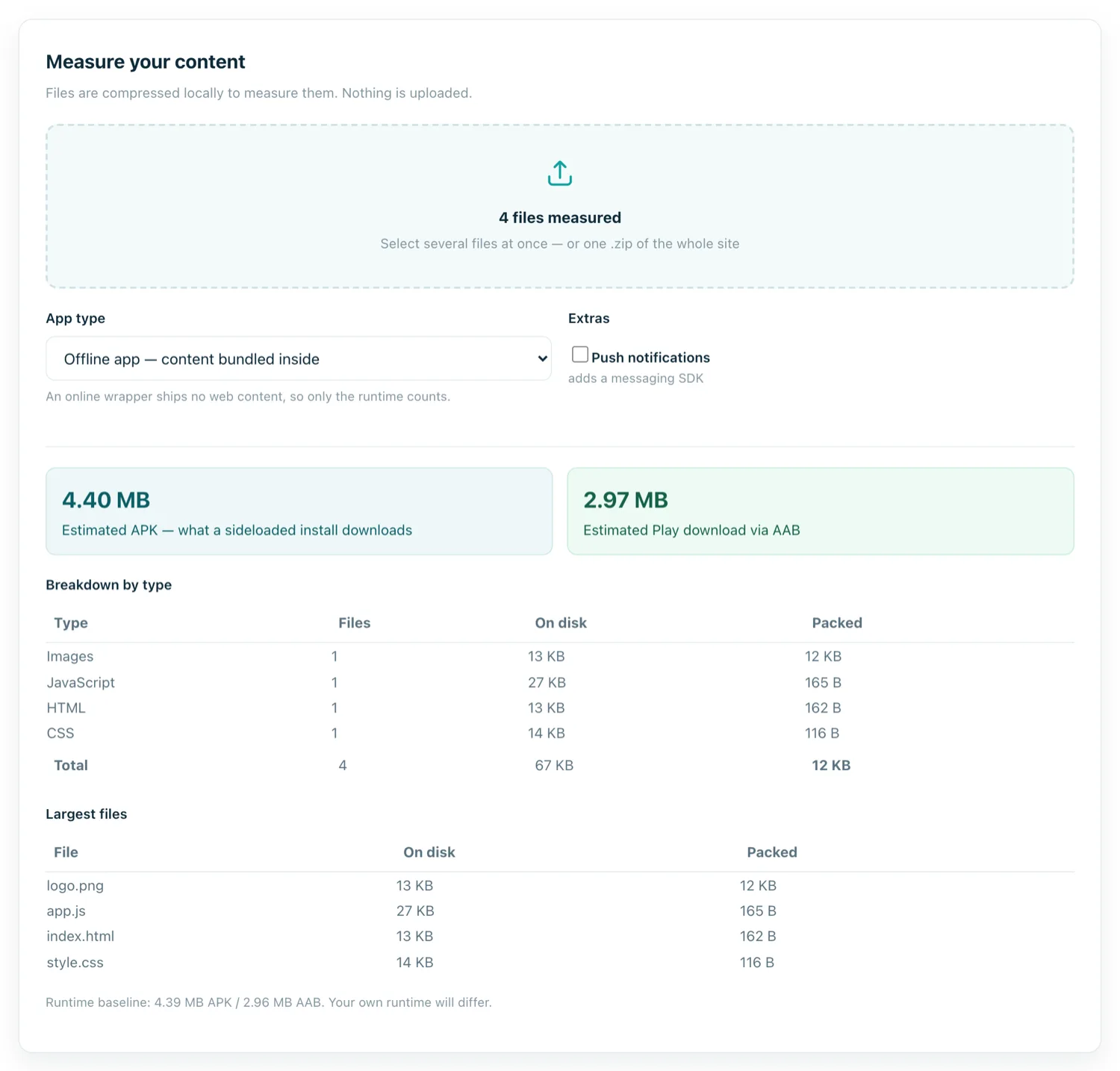
Whatever is in the ZIP ends up in the app. Things that routinely should not be:
node_modules/— hundreds of megabytes of build-time dependencies..mapsource maps, and unminified copies of files you also ship minified.- Design files, PSDs, original camera-resolution images.
.git/,.env, backups, and anything else you would not publish.
That last group matters beyond size: everything inside an APK can be extracted by anyone who downloads it. An API key in a bundled JavaScript file is public the moment you publish.
A pre-flight checklist
index.htmlis at the top level of the ZIP, not inside a folder.- Every path is relative, and every filename is lowercase.
- Fonts, scripts and styles are inside the ZIP, not on a CDN — unless the app will always be online.
- No
type="module"scripts, or you have confirmed the app serves content over localhost. - Opening
index.htmldirectly from your file manager still shows a working page. If it breaks in your own browser fromfile://, it will break in the app.
That last check is the highest-value thing on the list: double-click your index.html and look. Most conversion failures are visible right there, before any build has run.